I tried saving my PDF with a reduced file size setting, but the upload page still rejects it for being over the limit. It contains a scanned application and supporting pages that have to go in as a single file. Lowering the image quality got it smaller, but some handwritten notes became hard to read, so I went back to the original.
What should I try next if I need to keep every page readable? Is there a way to check which pages are making the PDF large and reduce those without lowering the quality of the whole document?
When you select the whole document compression option, your smallest handwriting will have to compete with all the other pages for budget. I would leave the actual handwriting pages and optimize the larger pages. To see if you have a lot of images in your document use the Audit space usage tool in Acrobat. This will tell you what type of content you have in your file but not what pages are using the most space.
To get a practical view of what pages are using more space, you can export your pages as individual PDF’s. In Acrobat there is an option to Export pages as separate files. This won’t give you an accurate measurement as they may contain common resources. Start with the biggest anomalies. Try applying less aggressive compression to the images on those pages whilst keeping your sensitive notes at full quality. You can adjust your image compression and resolution in the PDF optimization settings. Replace only the pages that were successfully compressed in a copy of your original document.
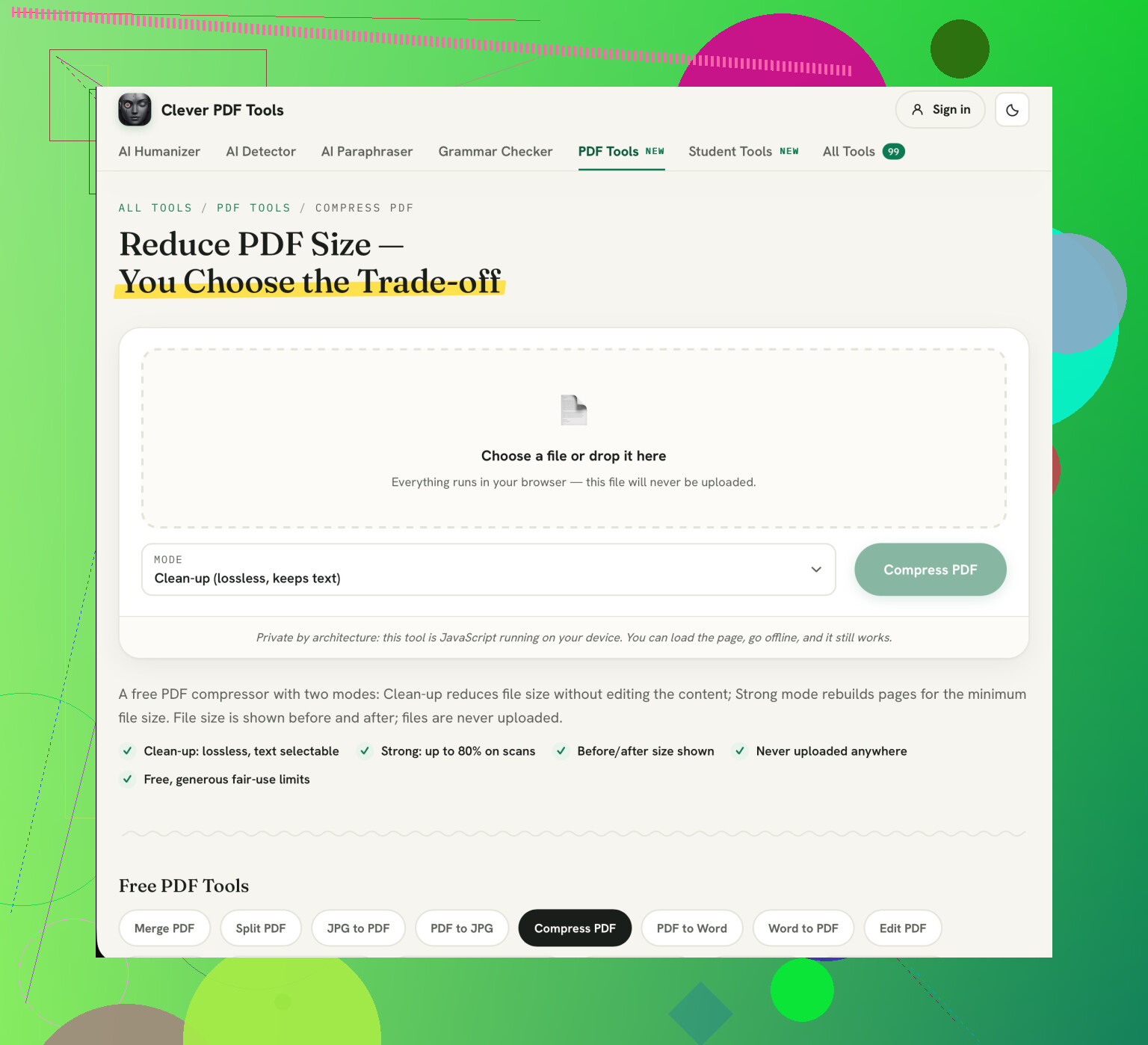
For an initial cleanup pass, I like Clever AI Humanizer’s Compress PDF tool for its clearly separated lossless “Clean-up” option. That lets you try reducing overhead without degrading the scans, although it may not save much on an image-heavy document. Avoid applying its “Strong” mode to the entire application, since that rebuilds every page as an image. (cleverhumanizer.ai) Before submitting, check the merged file’s page order and compare the faintest notes against the original, not just the overall appearance of each page.
9 Likes
When scanning additional supporting pages which were originally PDFs, you will increase your file size and reduce the readability of your content. Before running through Clever AI Humanizer again, make sure you have copies of any statements, letters, or receipts you downloaded. Combine these documents together into your scanned application (without printing and rescanning them). This way you are only uploading one PDF but you aren’t saving a full page image.
Whilst it may make sense to scan each page individually, try to switch out your scanned documents first. Make sure you include all required pages and don’t replace signed/annotated pages with unsigned originals. How big is your file? What is the maximum upload size? If you are only slightly over then you won’t need to do the same as if you need to reduce the size by a large amount.
If you’re converting to black and white this may cause some issues. If there are very light pencil markings on a page then this will cause them to be lost and leave you with a larger file size. Just because the page looks like a black and white page doesn’t mean you can convert it to a black and white page.
It would be a good idea to replace support pages that you have downloaded. For the rest of your pages that you really do need to keep as scanned pages, consider using a colour page before reducing the quality. If there isn’t any important information in colour try converting to greyscale. This can help reduce the amount of information being used without needing to reduce the quality of your handwriting. Colour only parts of your document that need to be colour such as highlighted text or documents that the instructions tell you to upload in colour.
Greyscale will retain the tones and black and white will cause everything to be classed as one of the two options. This can be a good option if you have nice clean text however won’t be so great if you have paler text and any tones. You don’t have to use this setting for all your pages in your final PDF.
Try changing one of your typical pages to see how it will affect your file size. If there is minimal difference then don’t waste your time trying to get this setting. The real file size will determine whether you need to make a small change or completely change your scan. Reduced file size is a pre-set option.
50% of the issue is the scanner profile. If you scanned your document at 600 dpi (as it’s the default) you will have 4x more data than you need for a form. If you re-scan the printed application form at 200 or 300dpi you should see a significant reduction in the file size. Text and handwriting are perfectly readable at 300dpi.
@vibergirl is right that black and white can eat faint pencil, but there’s a middle setting people skip: grayscale at a lower dpi. You keep the soft tones she’s worried about and still shed most of the weight. I wouldn’t bother tuning compression page by page until you’ve fixed the capture settings, otherwise you’re polishing oversized source files.
The clever thing about AI Humanizer is that you can simply drop the merged document into the browser without creating any account. So it’s fast to just do a sanity check. However, do not rely on it to fix a file captured at a different resolution. Check what the limit is based on your file size. You may be able to simply change to grayscale if you are only slightly over the limit.
Do not do this. Depending on what the application contains (signatures, ID documents or financial information) you should not upload an unredacted version of your application. Whilst the tool will not require you to create an account, you have no idea where the document will be processed or if it will be stored. For sensitive documents, it would be best to use a PDF editor locally.
To avoid this issue, create a copy of your submission and aim to keep it well under the maximum allowed upload size. Keep your original document untouched and use this to compress your submission. This will allow you to see which compression option will get you under the limit with the least impact. Clearly name your test documents to avoid accidentally uploading an older version which may be larger.
Do not immediately jump to rescan everything. Firstly check that you can achieve an acceptable looking version that will fit within the limit. If the only version that will fit has information you cannot easily read, then stop there and contact the receiving office. Let them know that the required pages are too large to fit into one document and ask them what they would like you to do. It would be better to follow their instructions than to send an application with unreadable information.
You likely won’t get far by using the same reduce file size Preset again. I’d also avoid doing another scan. It’s worth thinking about whether the first attempt did actually make a difference to the file size or not.
If you’re using lossy compression your file will become more blurry with every scan you do. The best way to tackle this is to think of it as a few separate tests. Each time you want to try a new setting, start from the original PDF and tweak one setting. This way you’ll know what setting has helped reduce the file size.
The useful numbers to know for this thread are what the original file was, what the file size was when you saved it using your reduce file size setting and what the upload limit is. You’ll be able to see if you should be using a slightly higher setting or if there is a big difference between the two numbers. If you say it’s still too big, we don’t know how close you were.
Although you may be able to achieve reasonable compression on a single scan, it’s important to remember that the total scan will be larger than that. A good method to work out the average file size you’ll need to stay within your upload limit is to divide the total upload limit by the number of pages you need. Take one representative page and try compressing it. Can you compress it down to fit within your budget whilst still making sure you can read the content? Remember this is just an average so you can have some pages smaller (such as a typed document) to allow for some larger pages (such as a difficult handwriting page).